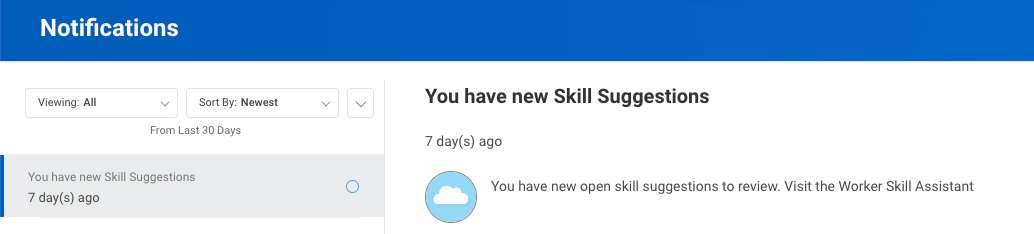
Notifications
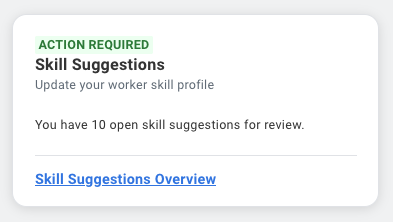
Home card
App Home Screen

Validation flow
Suggestions

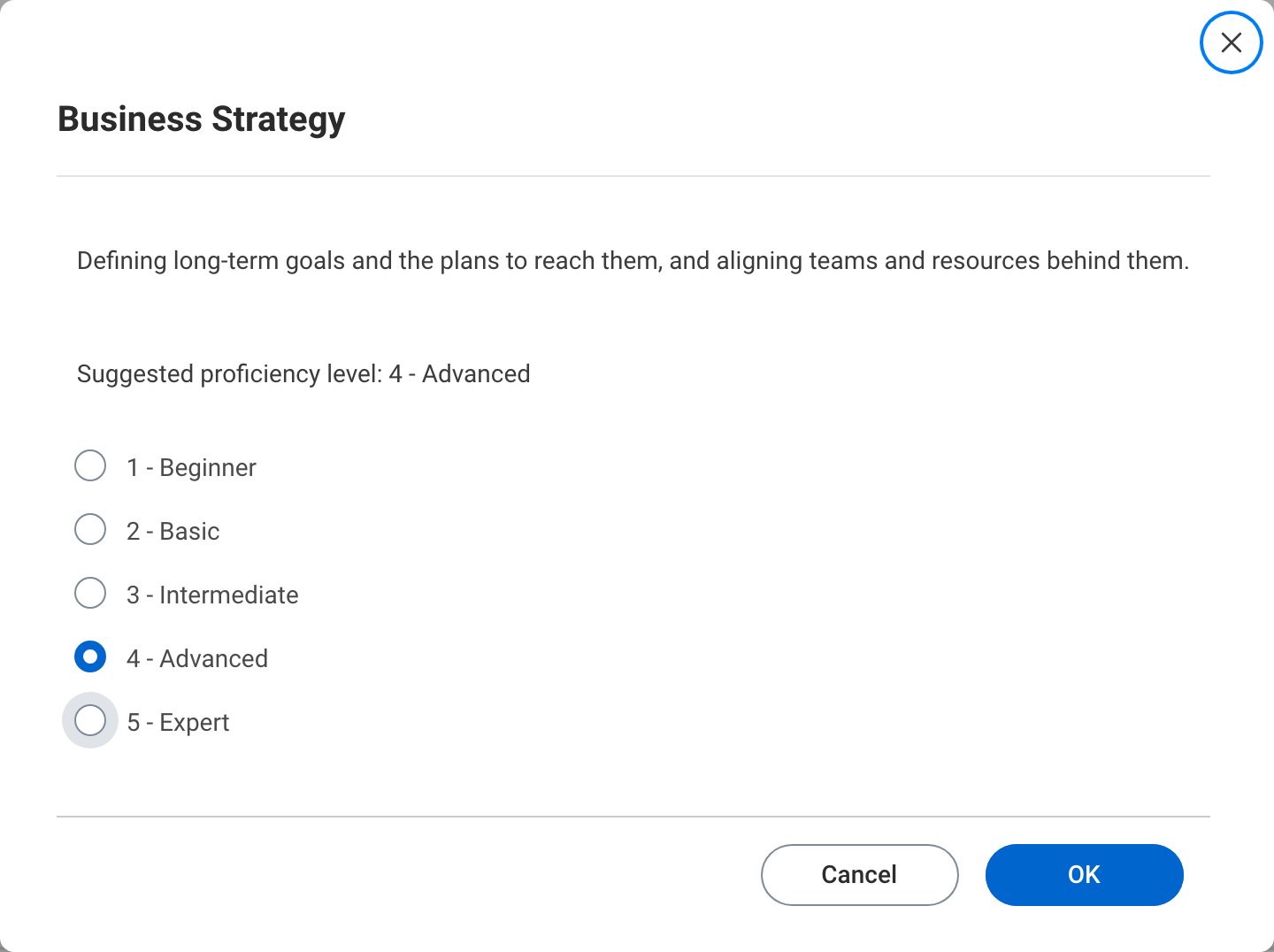
Self-rating Proficiency levels

Skills summary without Self-rated Proficiency Levels

Skills summary with Self-rated Proficiency Levels

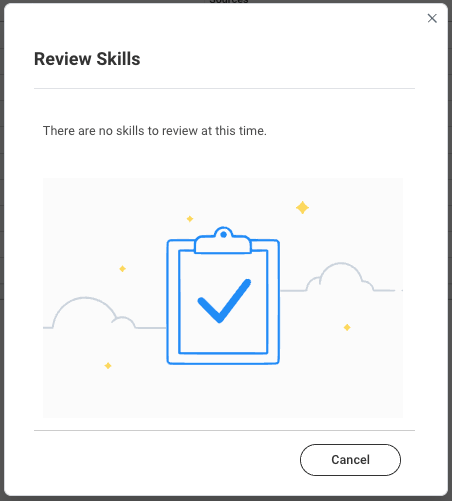
No more suggestions
Skill Profile tab
The Manage your skill profile view lets employees manage their skill profile at any time, see the how it works page.Example: Normal Skill Profile Management
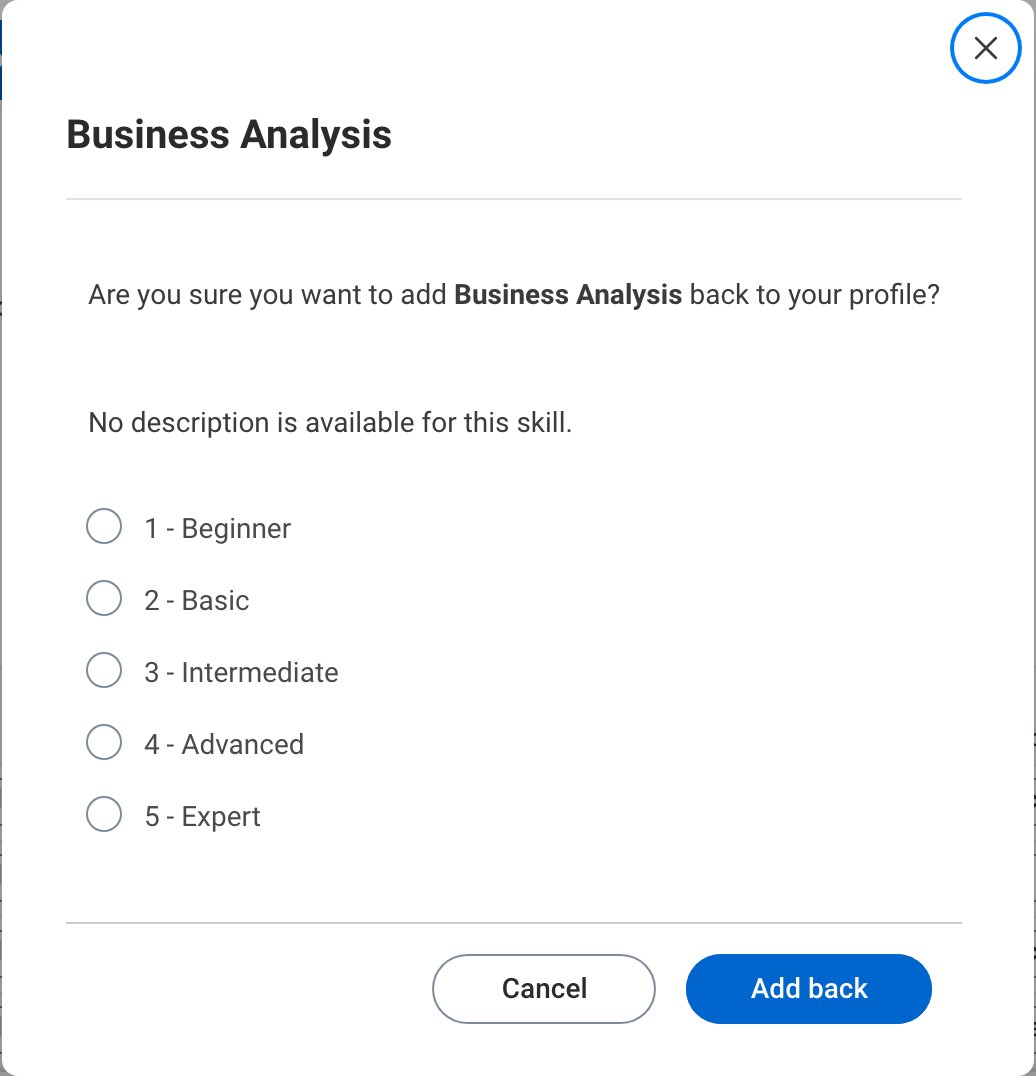
In this example, the Employee can manage their Skill Profile by adding or removing Skills, and by adding back a Skill they rejected earlier. The Details column is optional and can be shown or hidden per customer preference.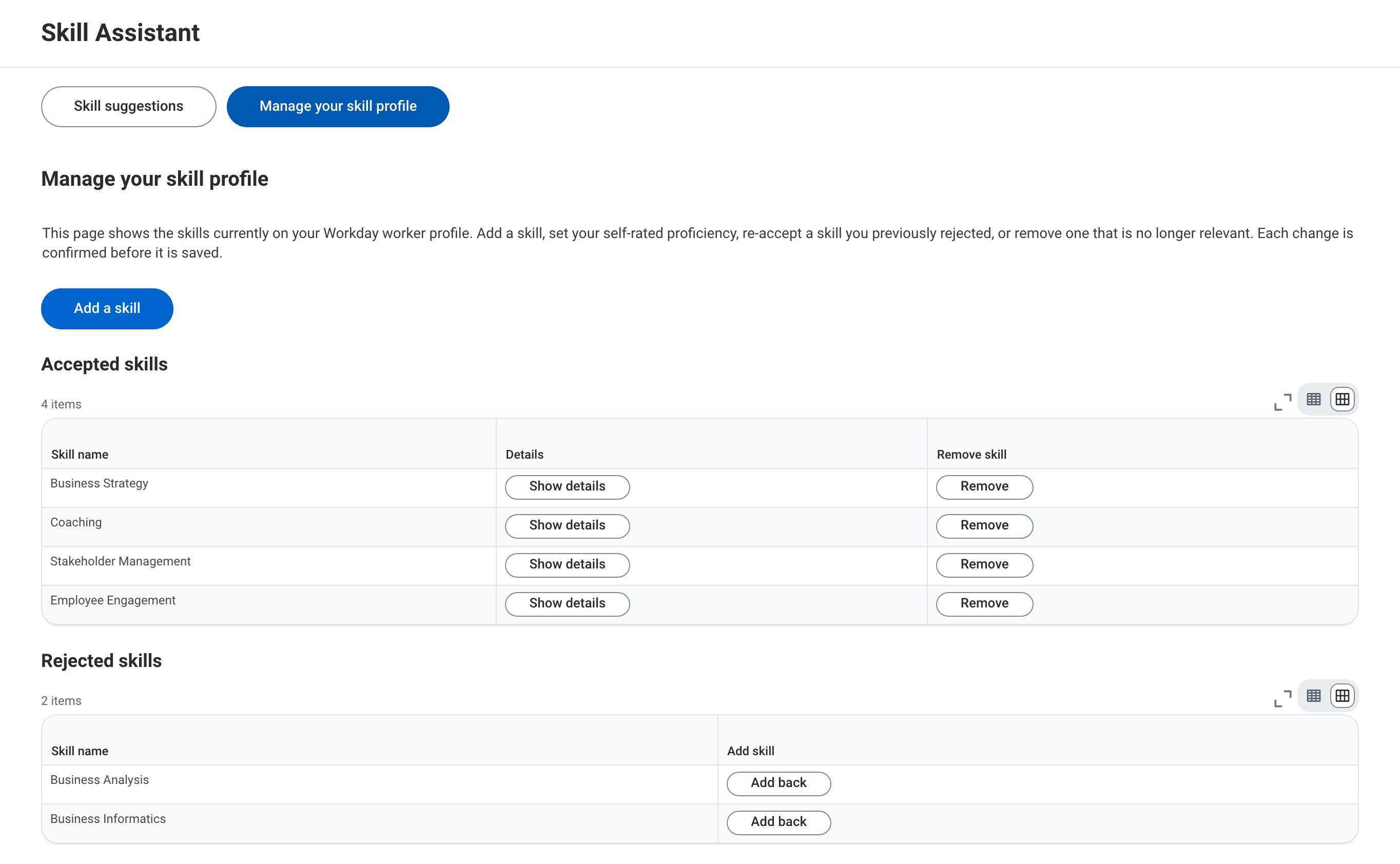
Example: Skill Profile Management including suggested and self-rated proficiency levels
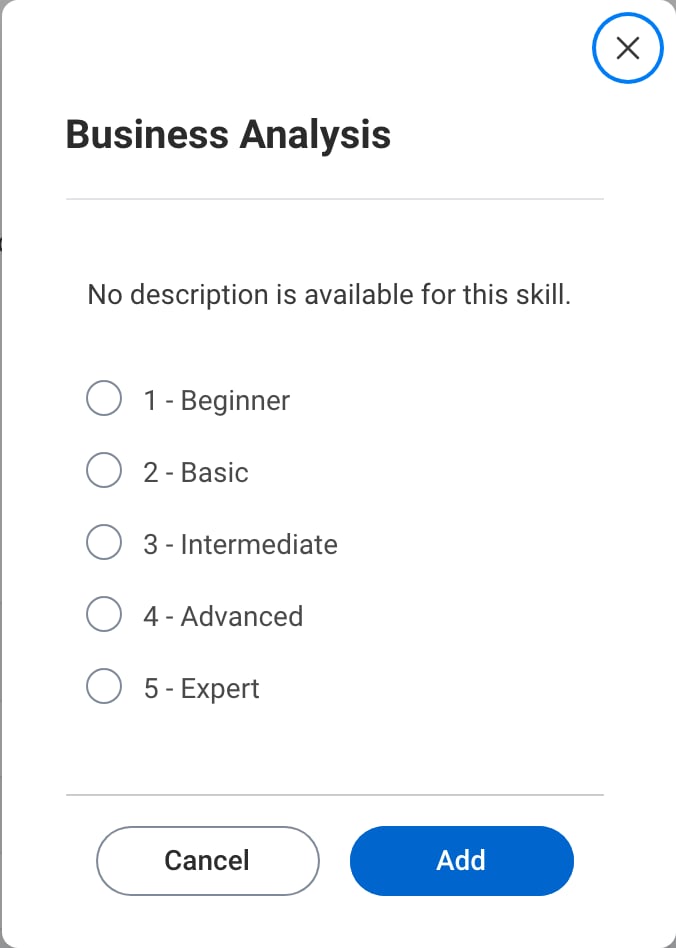
The functionality can be extended to let the user govern their proficiency level for each skill. Each level has a descriptive label so that the Employee knows what each level means. When available, a suggested proficiency level per skill is shown; a skill without one shows a dash.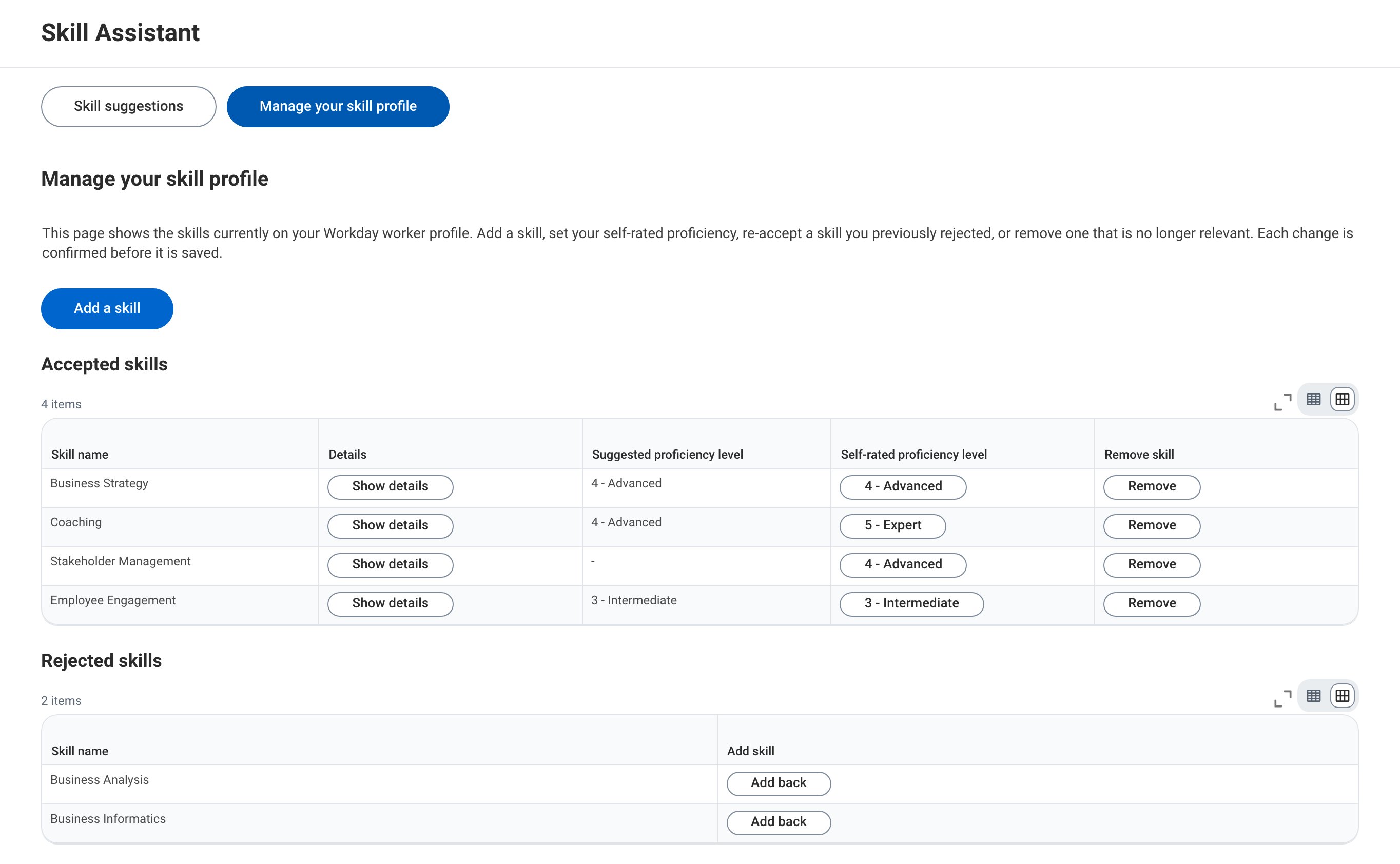
Example: Skill Profile Management including job-critical skills
The functionality can be extended to show which Skills are critical to the Employee’s current Job. A Required job skill column marks each Skill, and the job-critical Skills are listed first, so the Employee knows which Skills matter most and which to rate first.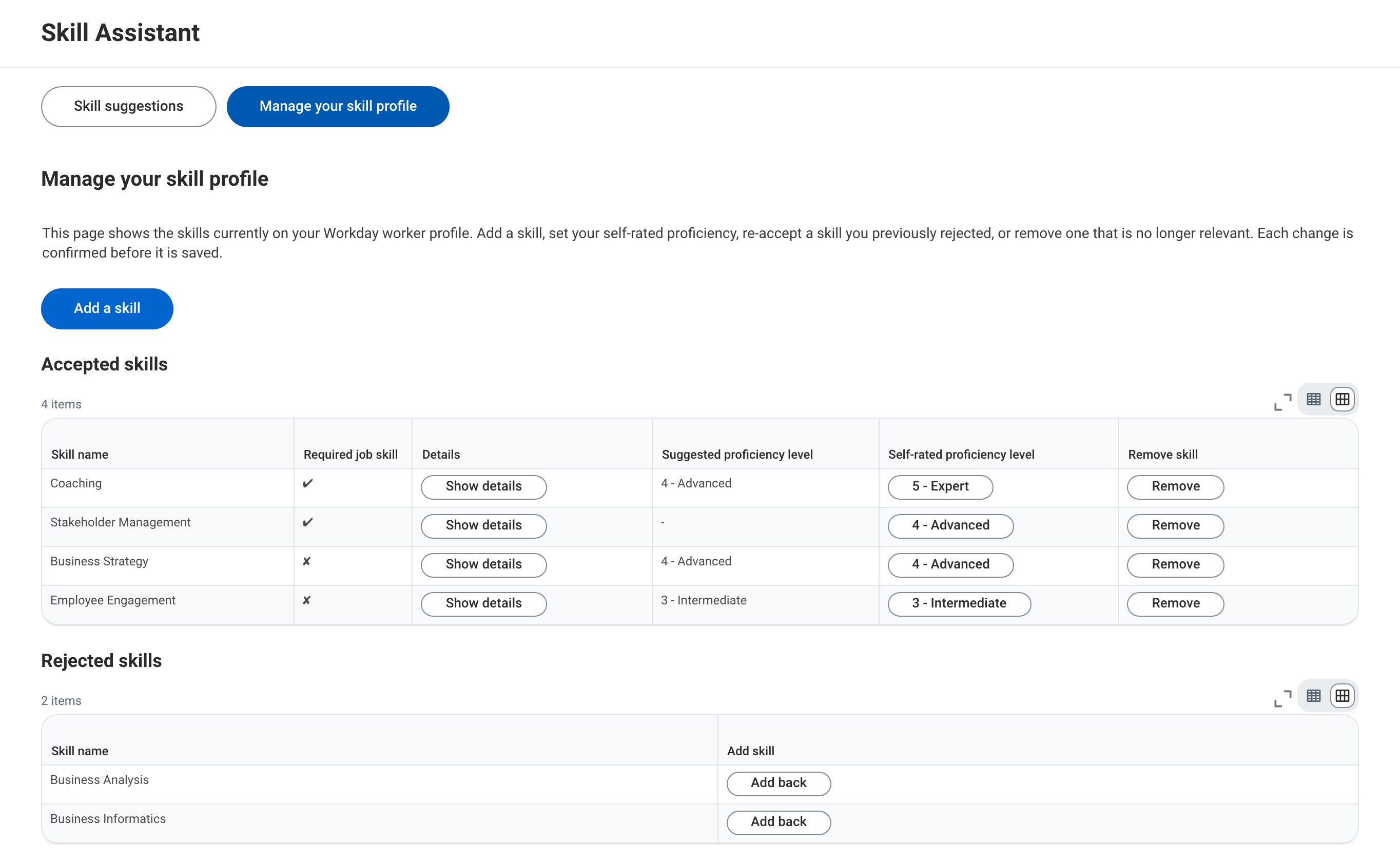
Example: Removing a skill and adding one back
Removing a skill asks for confirmation first.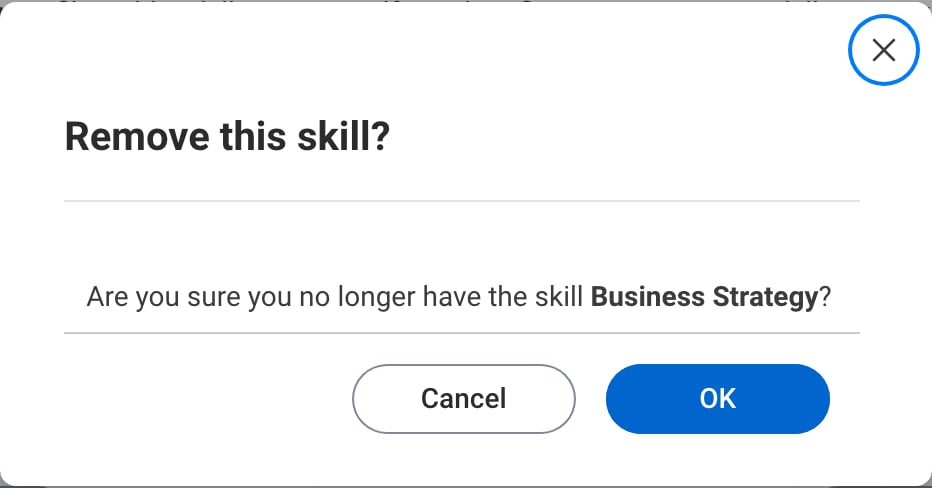
Example: Adding a skill
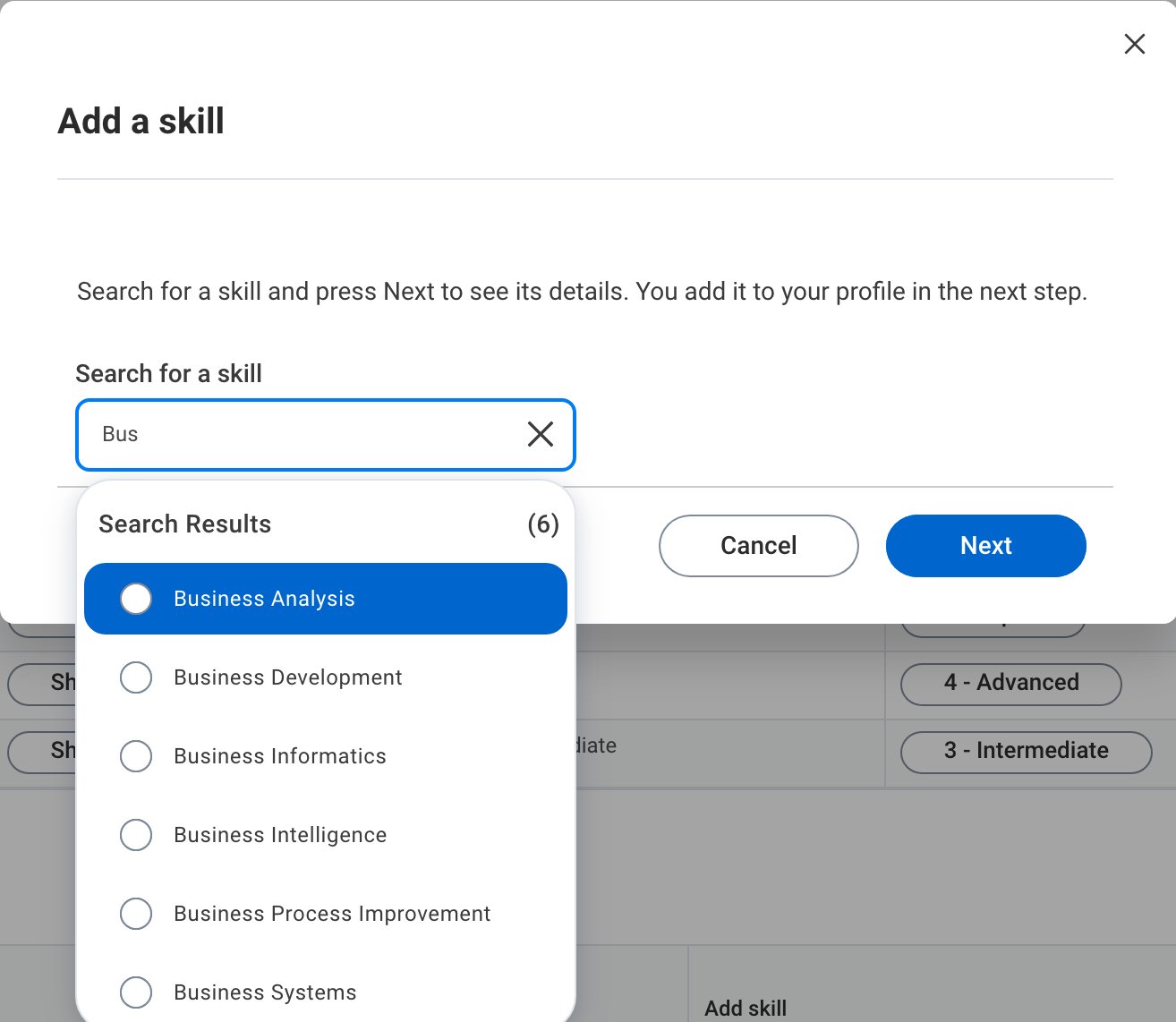
The Add a skill button opens a search over the skill vocabulary. Skills already on the profile are left out of the results.